Open cloudsignlab.com and click Sign in. You can sign in in three ways; use whichever your account is set up for.
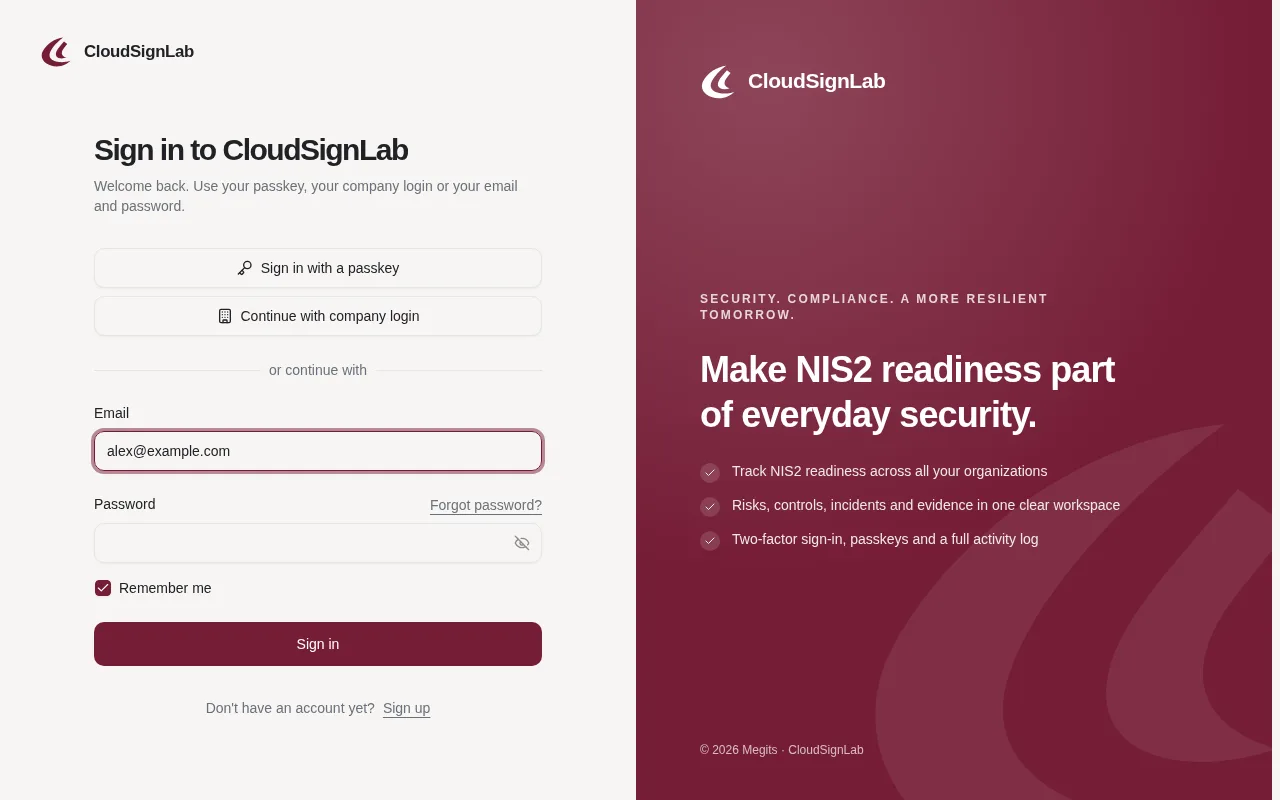
With your email and password
- Enter your Email and Password.
- Leave Remember me ticked on your own computer: you then stay signed in for up to 7 days. On a shared or public computer, untick it, so you are signed out when the browser closes.
- Click Sign in.
If you use two-factor authentication, CloudSignLab now asks for the 6-digit code from your app (see "Turn on two-factor authentication (2FA)").
With a passkey
Click Sign in with a passkey and confirm with your fingerprint, face or device PIN. No password, no code: the passkey is already a strong second factor. You first need to add a passkey to your account (see "Sign in with a passkey").
With your company login
If your company signs in to CloudSignLab through its own login (for example Microsoft Entra ID or Okta), click Continue with company login, enter your Work email and click Continue. You are sent to your company's sign-in page and come back signed in.
If you see "Company login is not set up for this email address", your company has not set it up for your domain: sign in another way or ask your IT team.
On your phone
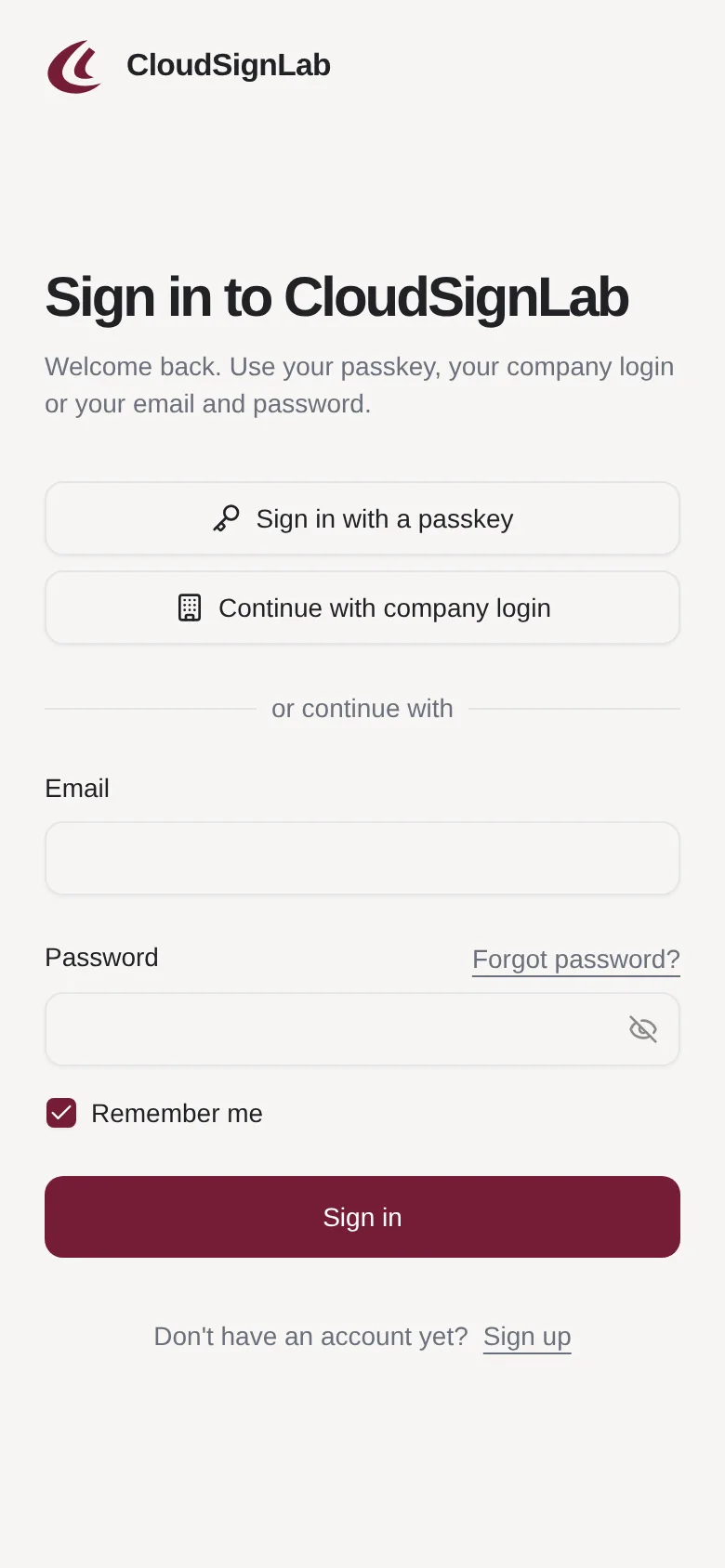
The sign-in page works the same way on a phone or tablet.
When something goes wrong
- Forgot your password? Click Forgot password? on the sign-in page (see "Reset a forgotten password").
- "Email not verified": you have not clicked the link in the Confirm your email address email yet. Look for it in your inbox or spam folder.
- "… tries left before this account is locked": after 15 wrong passwords or codes in a row the account is locked, to stop someone guessing. Resetting your password unlocks it.
- An email "New sign-in to your account": we send it when your account is used on a new device. If that was you, all is fine. If not, click Review security, change your password and sign out the sessions you do not recognize.