A passkey lets you sign in with the same fingerprint, face scan or PIN you use to unlock your laptop or phone. There is nothing to type and nothing to steal: the passkey never leaves your device, and it only works on cloudsignlab.com, so fake sites cannot trick you into using it.
A passkey counts as strong sign-in on its own, so organizations that require "2FA or a passkey" accept it.
Add a passkey
- Open Security in the menu of your Personal Account.
- On the Passkeys card, click Add passkey.
- Your browser or device asks you to confirm, for example with Touch ID, Windows Hello or your phone's screen lock. Follow its steps.
That is it. The passkey now appears on the card, with the date you added it.
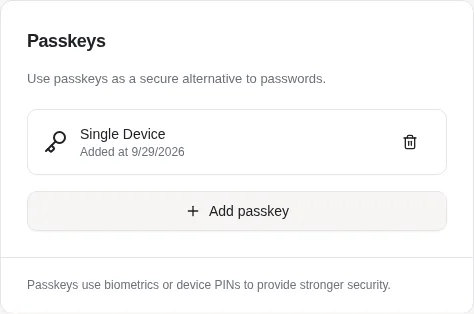
"Multi-device" passkeys are saved in your Apple, Google or Microsoft account or in your password manager and work on your other devices too. "Single device" passkeys stay on the device where you made them.
Tip: add a passkey on each computer or phone you use regularly. Your password keeps working as a back-up.
Sign in with it
On the sign-in page, click Sign in with a passkey and confirm on your device. Some browsers also offer your passkey as soon as you click the Email field.
Remove a passkey
Changing laptops, or lost a device? Click the bin icon next to the passkey and confirm with Continue. It can no longer be used to sign in.